
Steps
📍 Step 1: Access Your Integration
Log in to the AuthN Integration Portal.
Navigate to your Integrations dashboard.
Find and click on the integration that needs the certificate update.
✏️ Step 2: Edit the Integration
Click the Edit button (or the pencil icon ✏️) to enter edit mode.
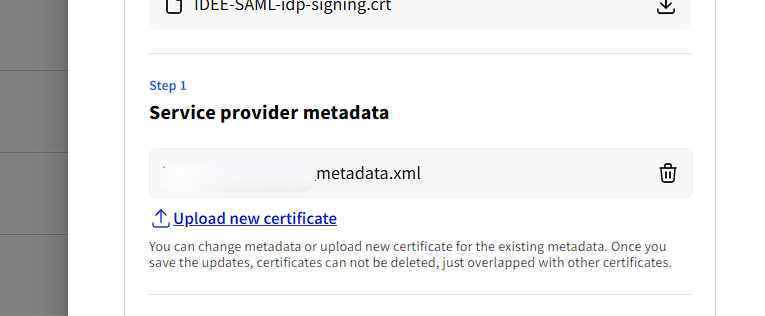
Scroll down to the Service Provider Metadata section.
This is where your current metadata file and certificates are stored.
📁 Step 3: Upload the New Certificate
Look for the button or link labeled Upload New Certificate.
Click it and select your new certificate file.
The portal will automatically process the file and import the new signing/encryption certificates.
💾 Step 4: Save Your Changes
Scroll to the bottom of the page.
Click Save to apply the update.
🎉 That's it! Your integration is now updated with the new, valid certificates. The change is effective immediately.