
📱 Using EAM with Microsoft Authenticator (System-Preferred MFA)
📍 Step 1: Navigate to Authentication Method Settings
Go to the Microsoft Entra Admin Center.
Navigate to:
Protection → Authentication methods → Settings
⚙️ Step 2: Enable System-Preferred MFA
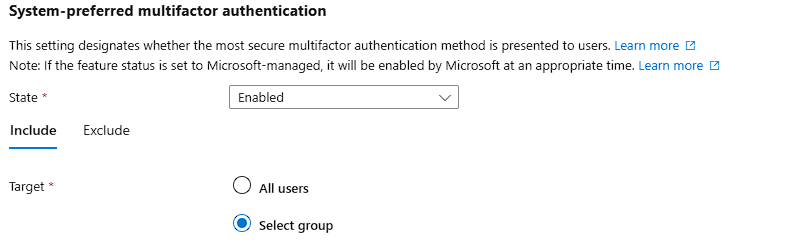
Under the System-Preferred MFA section, toggle the setting to Enabled.
In the Target tab, assign the same users or group that you assigned to your EAM policy.
This ensures a consistent experience for the right people.