
🚪 Configuring RD Gateway
📍 Step 1: Launch the RD Gateway Configuration Wizard
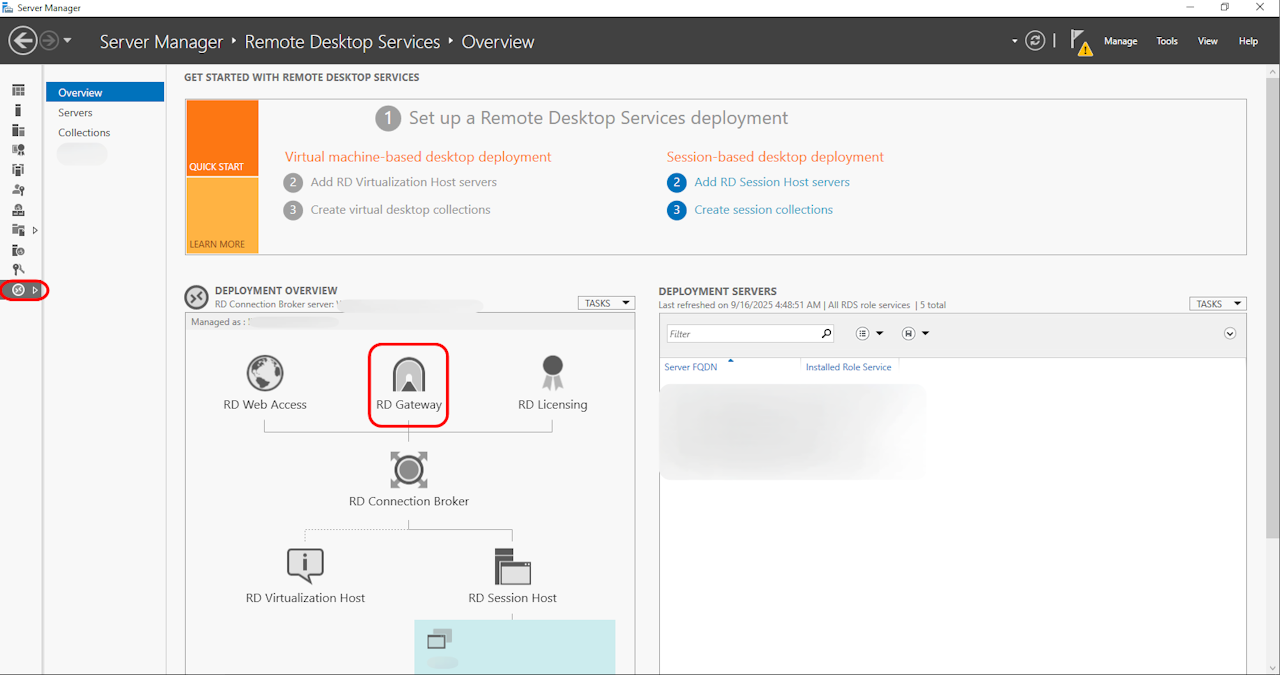
On your Windows Server, open Server Manager.
Navigate to:
Remote Desktop Services → OverviewIn the DEPLOYMENT OVERVIEW section, find the RD Gateway role.
Click the Task dropdown menu and select Configure RD Gateway.
⚙️ Step 2: Specify the Gateway Server & SSL Certificate
The configuration wizard will launch. Click Next.
Select a server: Choose the server you want to act as your RD Gateway from the list.
SSL Certificate Configuration:
For the SSL certificate name, paste the External URL you copied from the Entra Application Proxy setup.
Complete the wizard with the remaining default settings.
🔗 Step 3: Link the Gateway to the Deployment Properties
Back in the DEPLOYMENT OVERVIEW, click the Task dropdown again and this time select Edit Deployment Properties.
Navigate to the RD Gateway tab.
Select the option: "Use these RD Gateway server settings:"
In the Server name field, paste the same External URL.
Crucially, uncheck the box for "Bypass RD Gateway server for local addresses". This ensures all traffic, even from inside the network, flows securely through the gateway for consistent behavior.
📜 Step 4: Configure Certificates (Critical Step)
Stay in the Deployment Properties window and click on the Certificates tab.
You must ensure certificates are configured for both:
RD Connection Broker
RD Web Access
Use the same public TLS certificate (from a trusted CA like DigiCert, Sectigo) that you used for your RD Web Access server. It must contain the external FQDN.
🔐 Step 5: Establish Certificate Trust
For the entire system to function without certificate errors, you must:
On both your RD Gateway server and RD Web Access server:
Install the public TLS certificate into the Trusted certificate store.
Install the Root CA certificate (the authority that issued your public cert) and any Intermediate CA certificates into the Trusted Root Certification Authorities store.