
🛠️ Configure Windows Hello for Business via Microsoft Intune
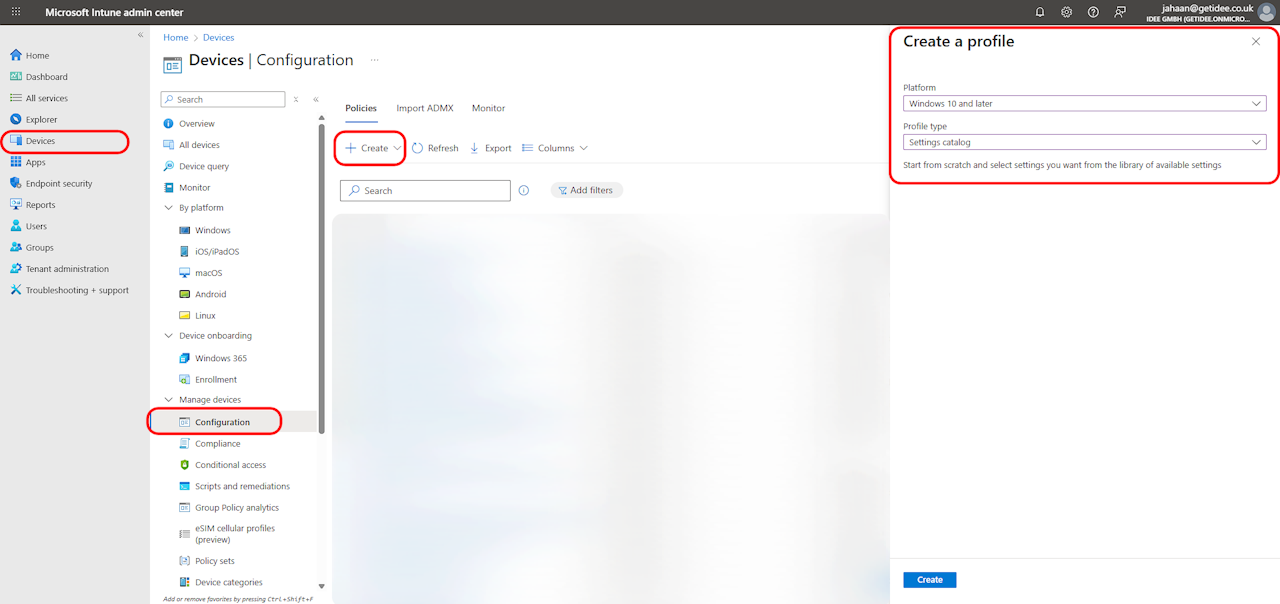
📍 Step 1: Access Intune Admin Center
Sign in to Microsoft Intune Admin Center.
Navigate:
Devices → Configuration → Create
⚙️ Step 2: Create a New Profile
Platform: Select Windows 10 and later.
Profile Type: Choose Templates → Settings catalog.
Click Create.
📝 Step 3: Configure Basics
Name: E.g., "WHfB - Corporate Devices" (Use clear naming!).
Description: Optional but recommended (e.g., "Enables biometric/PIN auth for assigned groups").
Click Next.
🔐 Step 4: Enable WHfB Settings
Under Configuration Settings:
Configure Windows Hello for Business: Enable
Use security keys for sign-in: Enable (if using FIDO2 keys).
Click Next.
👥 Step 5: Assign Groups
Assign to: Select user/device groups (e.g., "All Corporate Laptops").
Click Next.
✅ Step 7: Review & Deploy
Verify all settings.
Click Create to deploy.